
If you’re using Ubuntu, Debian, Linux Mint, or any Debian-based Linux distribution, sudo apt update is one of the most fundamental commands you’ll encounter. This comprehensive guide explains what it does, how it differs from related commands, and provides practical examples and best practices for keeping your system up to date. Whether you’re a beginner or an experienced system administrator, understanding sudo apt update is essential for maintaining a secure and stable Linux system.
What Does sudo apt update Do?
The sudo apt update command refreshes your system’s package lists by synchronizing the package indexes from the repositories configured in /etc/apt/sources.list and related configuration files. Think of it like updating a library catalog—it doesn’t actually download or install new books (packages), but it tells you what’s available and what versions are current.
When you run this command, the Advanced Packaging Tool (APT) contacts each configured repository and downloads the latest information about available packages, their versions, and dependencies. This ensures that when you later install or upgrade software, your system knows about the most recent releases and security patches.
Breaking Down the Command
- sudo (superuser do): Grants temporary administrative privileges needed to modify system package information
- apt (Advanced Packaging Tool): The modern package management command for Debian-based systems
- update (argument): Specifies the action to synchronize package indexes from repositories
sudo apt update vs upgrade vs dist-upgrade
This is the most common source of confusion for Linux users. While these commands sound similar, they serve distinctly different purposes. Understanding the difference is crucial for safe system maintenance.
| Command | Primary Function | Changes Installed Packages? | Risk Level |
| sudo apt update | Refreshes package lists from repositories | No | None |
| sudo apt upgrade | Installs newer versions of installed packages | Yes (upgrades) | Low |
| sudo apt full-upgrade | Upgrades packages and intelligently handles dependency changes (may remove or add packages) | Yes (upgrades, adds, removes) | Medium |
Key takeaway: Always run sudo apt update before upgrade or dist-upgrade. The update command refreshes the package lists so that upgrade knows what’s available. Running upgrade without updating first means you’re working with potentially outdated information.
Step-by-Step: How to Use apt update & upgrade
Here’s the recommended workflow for keeping your Debian-based system current:
- Update the package lists
sudo apt update
This fetches the latest information from all configured repositories.
- Review what can be upgraded (optional)
apt list –upgradable
This shows all packages with available updates before you commit to installing them.
- Upgrade installed packages
sudo apt upgrade
You’ll see a confirmation prompt [Y/n]. Press Y and Enter to proceed, or n to cancel.
The Safe Upgrade Cycle (Recommended)
For routine system maintenance, use this complete workflow:
sudo apt update && sudo apt upgrade && sudo apt autoremove
Breaking this down:
- && chains commands together, running the next only if the previous succeeded
- sudo apt autoremove removes packages that were automatically installed as dependencies but are no longer needed
- sudo apt autoclean (optional) removes old package files from the cache to free up disk space
Useful Options and Flags
Customize the behavior of apt update and apt upgrade with these common flags:
- -y or –yes: Automatically answer “yes” to all prompts. Useful for scripts and automation but use carefully as it bypasses confirmation.
sudo apt update && sudo apt upgrade -y
- –dry-run or -s: Simulate the upgrade without making actual changes. Perfect for testing before committing.
sudo apt upgrade –dry-run
- –fix-missing: Ignore packages that can’t be retrieved and continue with others.
sudo apt update –fix-missing
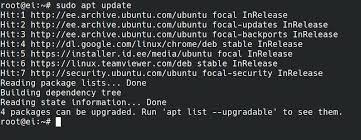
Understanding apt update Output
When you run sudo apt update, you’ll see lines starting with Hit, Get, or Ign. Here’s what each means:
- Hit: The repository package list hasn’t changed since the last update. Your local cache is already current.
- Get: APT is downloading a new or updated package list from this repository. This is normal when packages have been updated.
- Ign: The repository was ignored (usually temporarily). This can happen during network issues or if the repository returned an error. If persistent, it may indicate a problem with the repository.
After processing repositories, you’ll see summary lines like:
Reading package lists… Done
Building dependency tree… Done
15 packages can be upgraded. Run ‘apt list –upgradable’ to see them.
When and How Often Should You Run apt update?
The frequency depends on your use case, but here are best practice guidelines:
- Before installing any new package: Always run sudo apt update first to ensure you’re getting the latest version.
- After adding a PPA or new repository: Update immediately to fetch package lists from the new source.
- Daily or weekly for servers: Security-critical systems should check for updates frequently, potentially through automated cron jobs.
- Weekly or bi-weekly for desktops: Personal machines can update less frequently, though weekly is recommended for security patches.
- When troubleshooting package issues: Running update can sometimes resolve dependency conflicts by fetching the latest package metadata.
Common Errors and Troubleshooting
Slow Update Speeds
If apt update is taking an unusually long time:
- Check your network connection: Slow or unstable internet can delay repository access.
- Switch to a faster mirror: Edit /etc/apt/sources.list to use a geographically closer repository mirror. Use the “Software & Updates” GUI tool or manually edit the file.
- Disable or remove slow PPAs: Third-party repositories can be slow or unreliable. Check /etc/apt/sources.list.d/ and temporarily disable problematic sources.
“Failed to Fetch” or 404 Errors
These errors occur when a repository can’t be reached or a package has been removed:
- Check the repository URL: The repository may have moved or been discontinued. Search online for the current URL or remove the repository if it’s no longer maintained.
- Run with –fix-missing: This flag tells APT to continue even if some repositories fail.
sudo apt update –fix-missing
- Clear the APT cache: Corrupted cache files can cause errors. Clear them with:
sudo apt clean
sudo apt update
GPG/Key Errors
If you see messages about missing or expired GPG keys, repositories can’t be verified as authentic. To fix:
- Import the missing key using the key ID shown in the error:
sudo apt-key adv –keyserver keyserver.ubuntu.com –recv-keys [KEY_ID]
- For modern systems (Ubuntu 22.04+), keys should be added to /usr/share/keyrings/ instead of using apt-key.
Best Practices & Pro Tips
- Prefer apt over apt-get. The apt command is the modern, user-friendly interface. While apt-get still works, apt provides better output formatting and combines functionality from apt-get and apt-cache.
- Create system snapshots before major upgrades. Before running sudo apt dist-upgrade or sudo apt full-upgrade, create a restore point using tools like Timeshift (for systems with Btrfs or ext4) or take a virtual machine snapshot. This allows you to roll back if something breaks.
- Automate updates cautiously. While you can automate sudo apt update && sudo apt upgrade -y with cron jobs, automatic upgrades can occasionally break systems (especially after kernel or driver updates). For production servers, consider:
- Using unattended-upgrades package for security updates only
- Scheduling updates during maintenance windows
- Testing updates on staging systems first
- Clean up periodically. Run sudo apt autoremove regularly to remove orphaned dependencies and sudo apt autoclean to clear old package files. This prevents disk space bloat over time.
- Review changes before confirming. When prompted to proceed with upgrades, read the list of packages being changed. Unexpected kernel or system library updates may require a reboot or careful planning.
- Keep LTS releases for stability. For servers and production systems, stick to Long-Term Support (LTS) versions of Ubuntu (22.04, 24.04) or Debian Stable. These receive security updates for years without major version changes.
Frequently Asked Questions
Is it safe to run sudo apt update every day?
Yes, running sudo apt update daily is completely safe. It only refreshes package lists and doesn’t modify any installed software. Many system administrators run it automatically via cron to stay informed about available updates. The command itself has no risk—actual changes only occur when you run apt upgrade or apt install.
What’s the difference between apt and apt-get? Which should I use?
apt is the newer, more user-friendly command introduced in 2014. It combines the most common operations from apt-get and apt-cache with improved output formatting, progress bars, and color coding. apt-get is the legacy tool and is still recommended for scripting (because its output format is more stable). For interactive terminal use, apt is recommended. Both commands work identically for update and upgrade.
Do I need to run sudo apt update before every install?
Not necessarily before every install, but it’s good practice if you haven’t updated recently (within the last day or so). If you’ve just run apt update, you can install multiple packages without updating again. However, if you’re installing a package for the first time or after adding a new repository, running apt update first ensures you get the latest available version.
Can I automate sudo apt update and upgrade with a cron job?
Yes, but with caution. You can create a cron job that runs sudo apt update && sudo apt upgrade -y. However, automatic upgrades can occasionally cause issues (kernel changes, driver incompatibilities, or configuration conflicts). For better control, consider the unattended-upgrades package, which is designed for safe automatic security updates. It applies only security patches and includes safeguards against breaking the system.
My sudo apt update is very slow. How can I fix it?
Slow updates are usually caused by network issues or distant/overloaded repository servers. Try switching to a geographically closer mirror by editing /etc/apt/sources.list or using the “Software & Updates” GUI to select the best server. You can also disable slow or unnecessary PPAs in /etc/apt/sources.list.d/. Additionally, check if a specific repository is stalling the process by watching the output—if one consistently hangs, consider removing it temporarily.
What does “sudo apt update && sudo apt upgrade -y” do? Is the -y flag dangerous?
This command first updates package lists, then upgrades all packages while automatically answering “yes” to prompts. The -y flag (or –yes) bypasses confirmation. It’s useful for automation but “dangerous” in the sense that you won’t see what’s being upgraded before it happens. On production systems, it’s better to review changes manually or use –dry-run first to preview the changes.
Should I use upgrade or dist-upgrade/full-upgrade for a standard system update?
For routine updates, use sudo apt upgrade. It’s the safer option that won’t remove packages or make major system changes. Use sudo apt full-upgrade (or dist-upgrade in apt-get) only when you need to handle complex dependency changes, such as during a major distribution version upgrade (e.g., Ubuntu 22.04 to 24.04) or when apt upgrade reports that packages are being “held back.”
Will sudo apt upgrade update the Linux kernel?
Yes, apt upgrade will install kernel updates if they’re available and the linux-generic metapackage (or similar) is installed. Kernel updates typically require a reboot to take effect. You’ll see a message prompting you to restart after the upgrade completes. However, apt upgrade won’t remove old kernel versions automatically—use apt autoremove to clean up old kernels after verifying the new one works.
How do I reverse or undo an update if something breaks?
APT doesn’t have a built-in undo function. The best approach is prevention: create a system snapshot using Timeshift (for Btrfs or ext4 filesystems) before major upgrades. If you’re running on a virtual machine, take a VM snapshot. If an upgrade does break your system, you can boot from a Timeshift snapshot or restore the VM. Alternatively, you can manually downgrade specific packages using apt install package-name=version, but this is complex and not always reliable.
I’m getting a “Failed to fetch” error. What should I do?
This usually means a repository is unreachable or has been removed. First, try running sudo apt update –fix-missing to skip problematic repositories. Check your internet connection and verify that the repository URLs in /etc/apt/sources.list and /etc/apt/sources.list.d/ are correct and still active. If a PPA or third-party repository has been discontinued, comment out or remove that line from the sources files. You can also clear the APT cache with sudo apt clean and try again.
Conclusion
Mastering sudo apt update and related commands is foundational to maintaining a healthy Debian-based Linux system. By understanding the difference between update, upgrade, and full-upgrade; following the safe upgrade cycle; and troubleshooting common issues, you’ll keep your system secure, stable, and current.
Remember the golden rule: always run sudo apt update before installing or upgrading packages. It’s a small habit that prevents countless headaches. And for critical systems, never skip creating snapshots before major distribution upgrades.
Whether you’re managing Ubuntu servers, Debian desktops, or Raspberry Pi systems, these package management skills will serve you throughout your Linux journey. This guide was last updated for Ubuntu 24.04 LTS and Debian 12, ensuring all commands and best practices reflect current standards.
CLICK HERE FOR MORE BLOG POSTS

John Authers is a seasoned and respected writer whose work reflects the tone, clarity, and emotional intelligence that readers value in 2025. His writing blends deep insight with a natural, human voice—making complex ideas feel relatable and engaging. Every piece he crafts feels thoughtful, original, and genuinely worth reading.